You can back-up or save photos taken with Pruvan to a PC by using iTunes. Follow the steps below to learn how. If you are having technical trouble with iTunes see the notes at end of the article.
How to Save your Photos to a PC
- Open iTunes on your computer
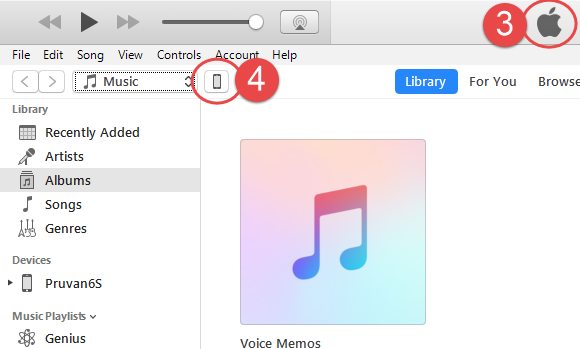
- Connect your device to your computer
- Let your phone sync with iTunes
- There will be 5 steps before the phone is synced
- The title bar will return to the Apple logo once syncing is complete
- Click your device icon near the top left
- This will take you to your device's details
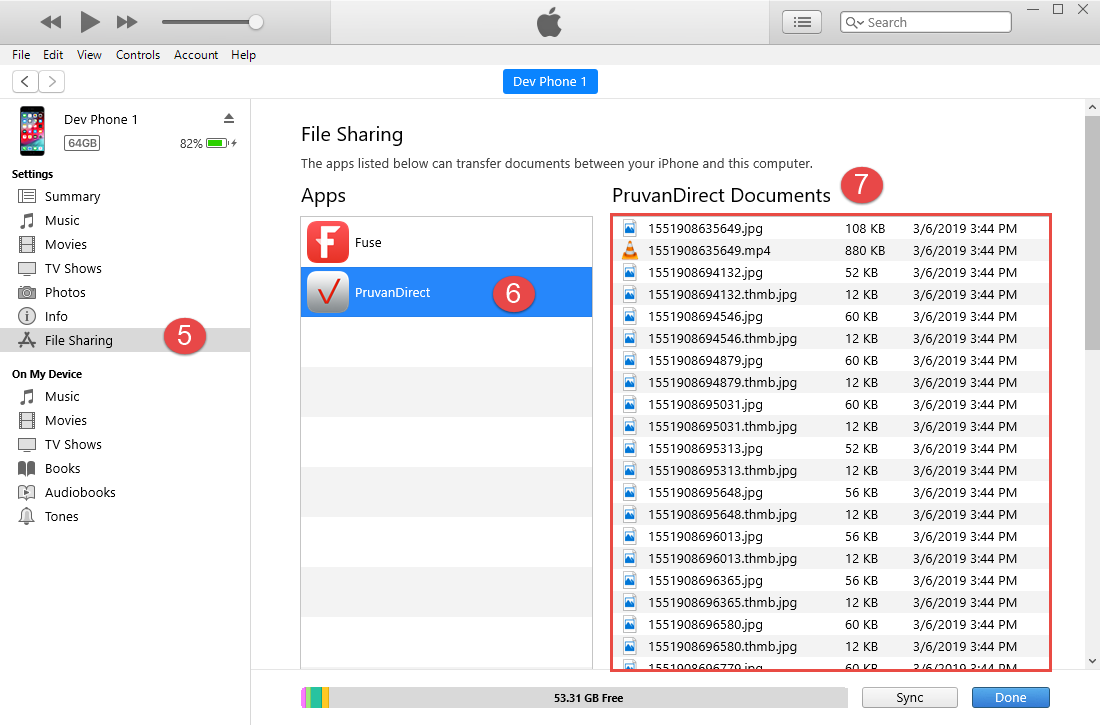
- Click on File Sharing
- Click on Pruvan
- It can a few minutes to load the files
- Once it loads, you will see your .jpg files in the Documents section on the right
- Select the photos to save
- The .jpg files are in order by date and time
- Use ctrl-a / cmd-a to select them all
- Select a photo and shift-select another to select a range of photos
- ctrl-click / cmd-click to select individual photos
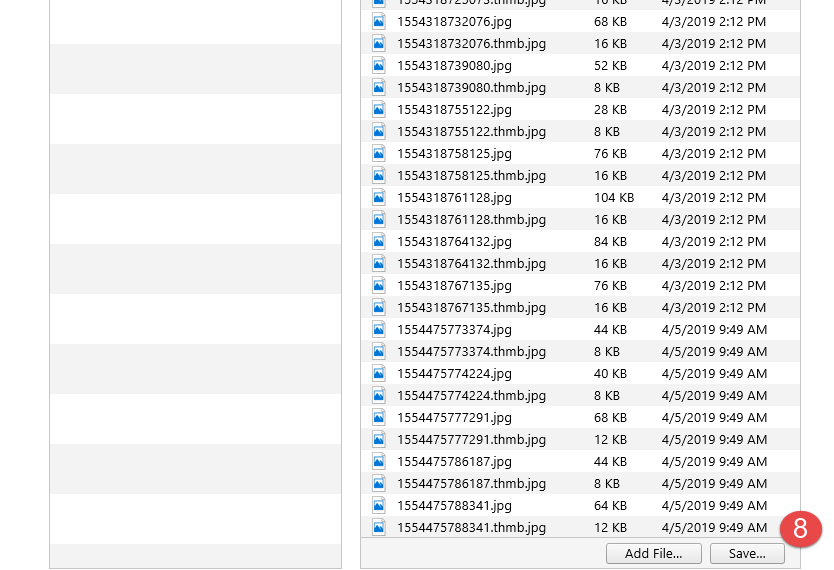
- Click Save To and save the photos to your computer
- You will be able to upload those to whatever portal you use
HELP! iTunes will not run on my computer
If you get an error trying to run iTunes, or it fails to install or update properly, then follow the steps in this Apple article:
The directions worked great and I retrieved my photos. Thank you
Good to hear!
Directions were great and I wanted to let you know that Morgan Palmer, the woman that had to handle my frantic email, was wonderful and could not have been more helpfull.