When creating a group you can select from a list of room dimensions or input your own custom dimensions.
Adding custom dimensions
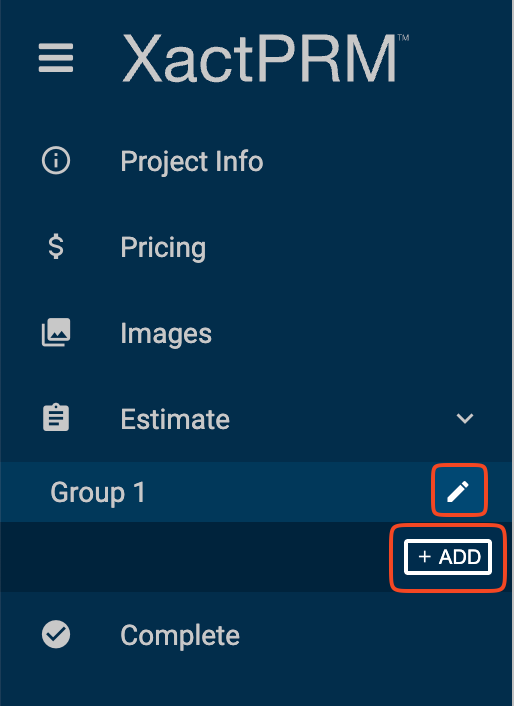
- On the Estimate page, click the +ADD button to add a new group or the pencil icon to edit an existing group.
- On the Add/Edit Group window, open the Dimensions dropdown and select the Custom option.
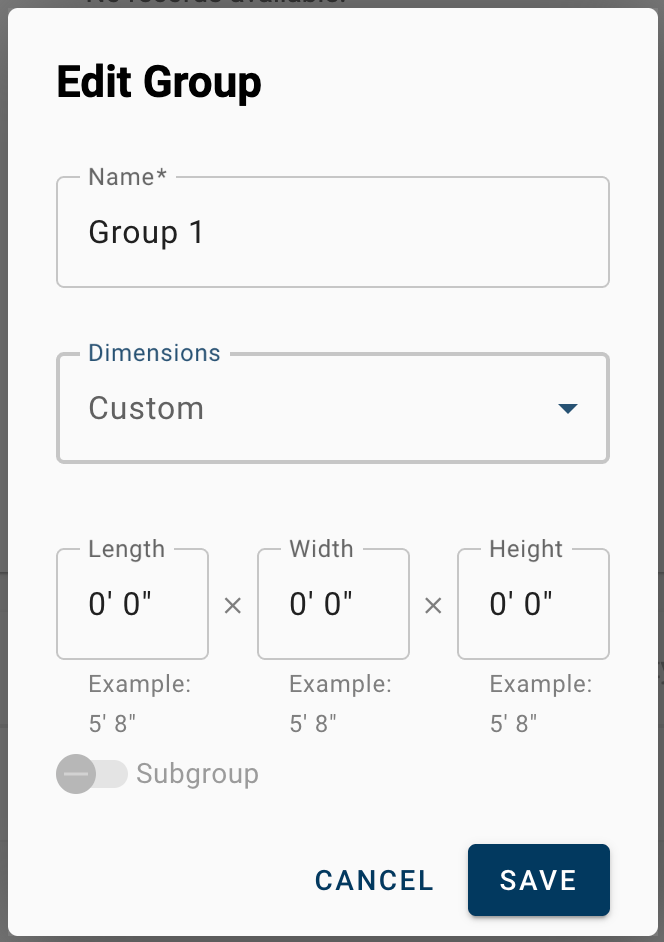
Input your desired length x width x height dimensions. The following table outlines how various inputs will be interpreted in any of the dimension fields:
User Input Interpreted Value 4 4' 0" 4 3 4' 3" 4 3" 4' 3" 4' 4' 0" 4' 3 4' 3" 4'3 4' 3" 4' 3" 4' 3" 4. 4' 0" 4.3 4' 4" 4" 0' 4" 4.3" 0' 4" 4.6" 0' 5" 44" 3' 8" 4' 3' 4' 3" 4 3' 4' 3" 4'3' 4' 0" - Click SAVE to save the custom dimensions.
- Once dimensions are set, line items that key off of the room dimensions will be auto-populated with quantities. Adjust as needed.
Comments