Tasks can be added, edited, and removed from Projects in Pruvan Online. You will not be able to make changes to a project if you do not have the correct permissions.
How to Add Tasks
- Log in to Pruvan Online
- Click on Projects
- Locate the Project you want to edit
- Select the Project
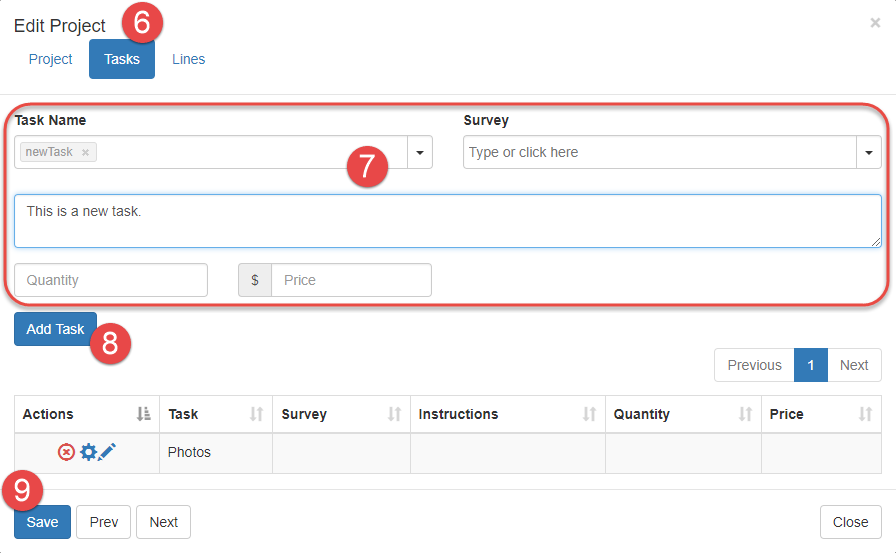
- Click Edit
- Click Tasks
- Enter a Task Name
- Optionally enter a Survey Template ID, Instructions, Quantity, or Price
- Click Add Task
- Click Save
How to Edit Tasks
You can edit a task by changing the task instructions, or changing / removing / adding a survey template id. You can not change the task name; in order to do that you will need to remove the task and add a new one with the desired name.
- Log in to Pruvan Online
- Click on Projects
- Locate the Project you want to edit
- Select the Project
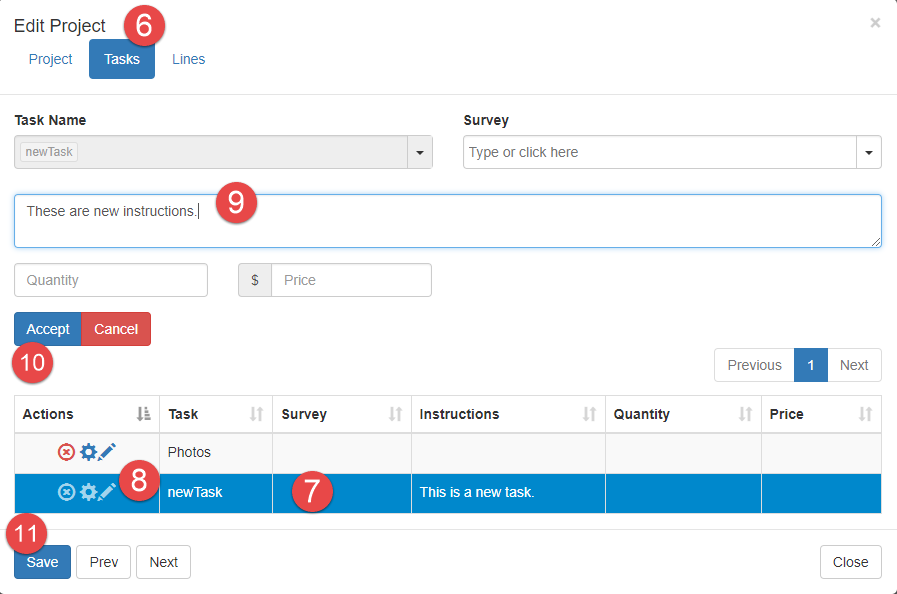
- Click Edit
- Click Tasks
- Find the Task you wish to Edit
- Click the Pencil icon
- Make the appropriate changes
- Click Accept
- Click Save
How to Remove Tasks
- Log in to Pruvan Online
- Click on Projects
- Locate the Project you want to edit
- Select the Project
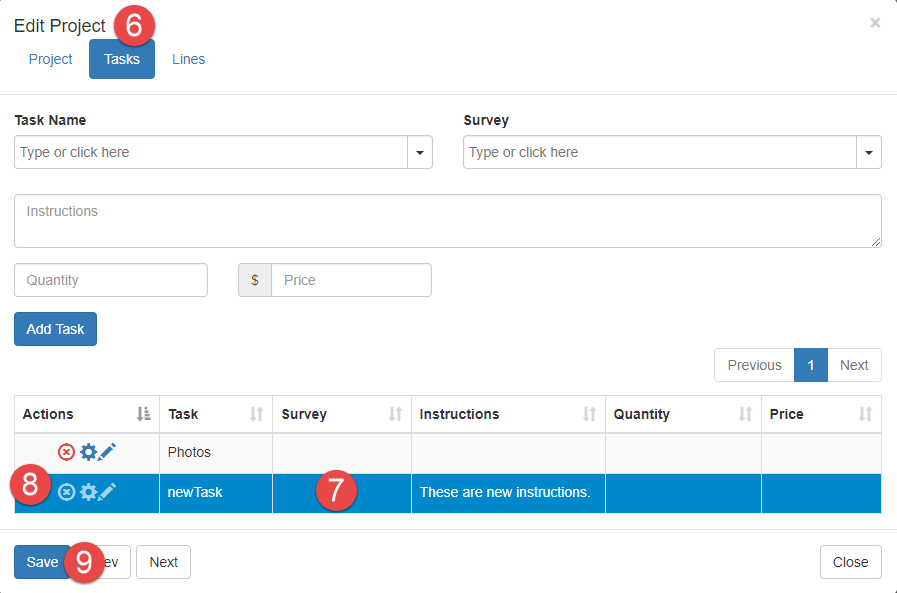
- Click Edit
- Click Tasks
- Find the Task you wish to Remove
- Click the red X icon
- Click Save
Comments