For PPW Admins
1. Setup user in Pruvan
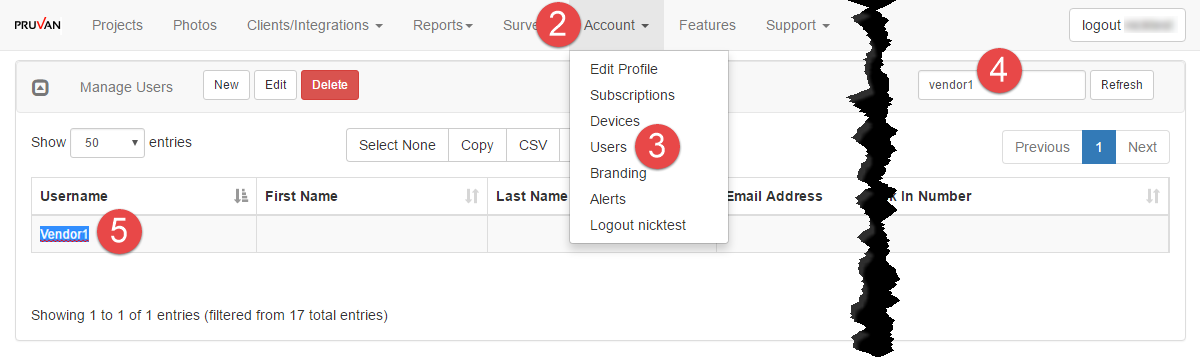
- Log in to Pruvan Online
- Click on Account
- Select Users
- Verify or create the sub user you want to auto-assign to
- Select the username and copy it
2. Link user in PPW
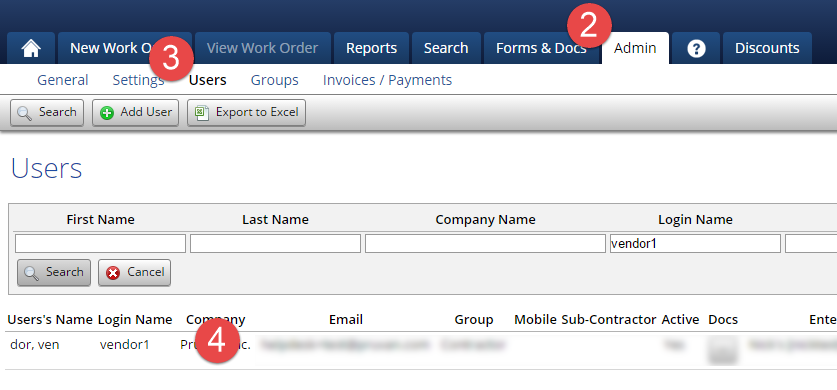
- Log in to Property Pres Wizard
- Click on the Admin tab
- Click on Users
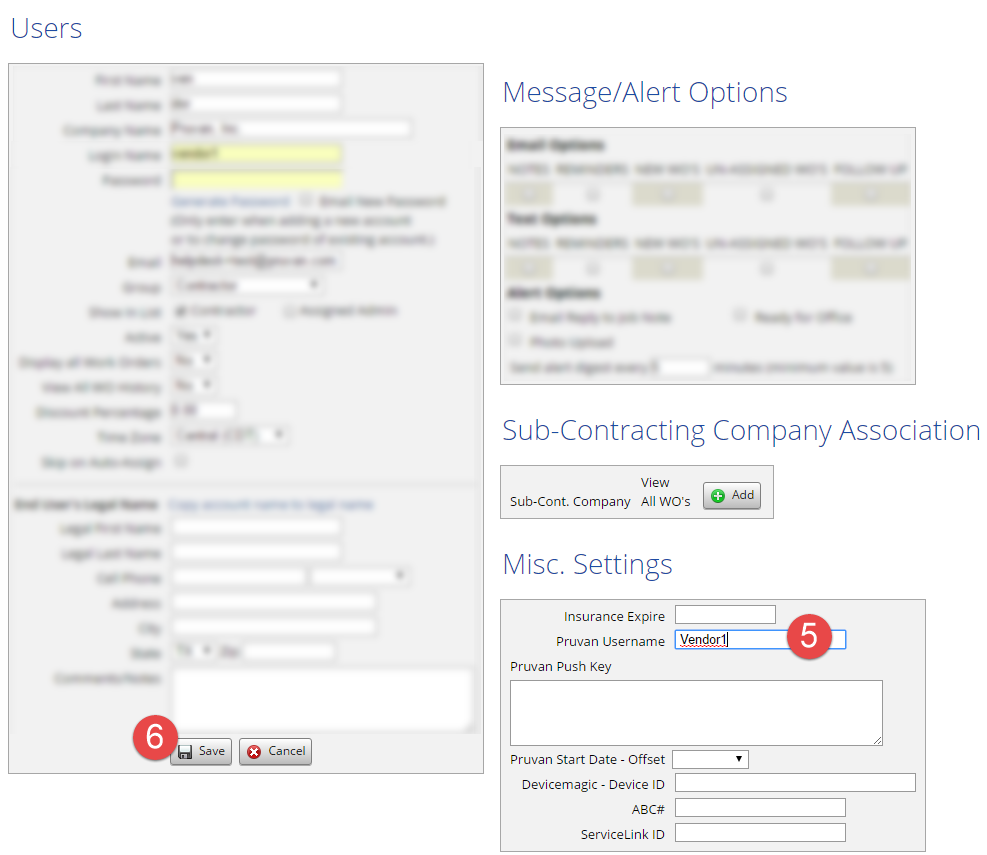
- Select the user that is associated with the Pruvan sub-user you just verified / created
- Paste the username from Pruvan in the Pruvan Username field
- Click the grey Save button
3. Repeat for all additional users
4. Complete a Full Refresh to import your changes
5. After the pop-up shows import complete, verify auto-assignment
For PPW Contractors
We only recommend auto-assigning your orders if you do not have any sub-contractors you will be assigning to.
1. Set up your PPW Integration
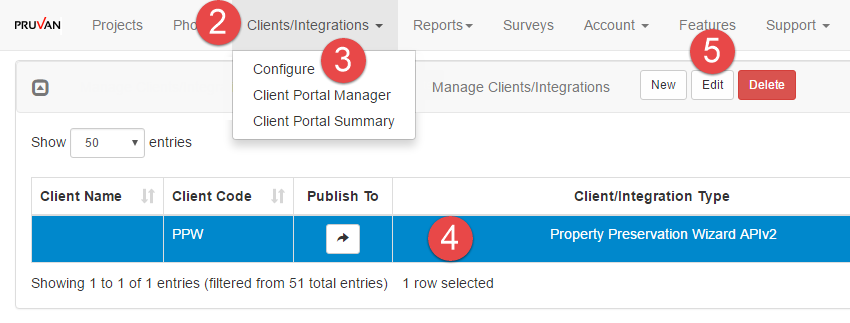
- Log in to Pruvan Online
- Click on Integrations
- Select Configure
- Select your PPW APIv2 integration
- Click Edit
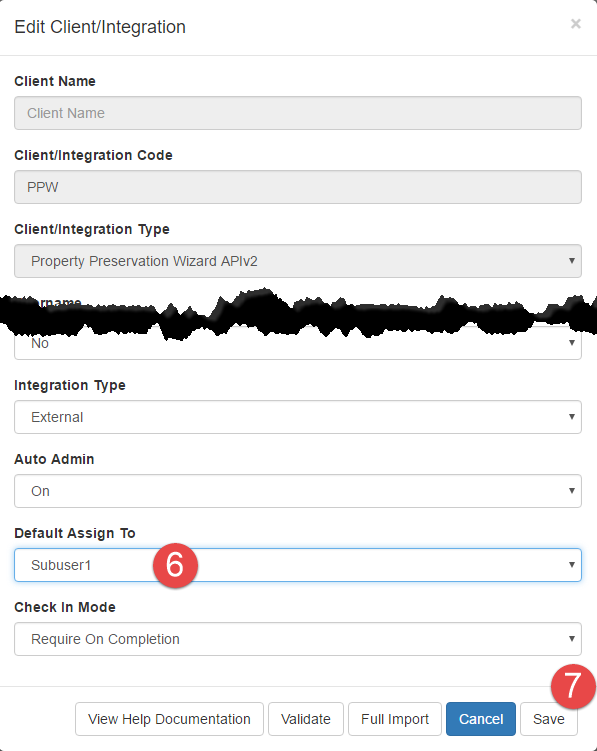
- Select your Pruvan username from the Default Assign To dropdown
- Your Integration Type will need to be set to External to see the Default AssignTo option
- Click the Save
Comments